![nopsec-full-logo-white.png]](https://support.nopsec.com/hs-fs/hubfs/Images/Logos/NopSec%20Logos/nopsec-full-logo-white.png?height=40&name=nopsec-full-logo-white.png)
The process involves creating an API client in the Falcon console and assigning it the necessary Read permissions for the Hosts and Vulnerability Management scopes.
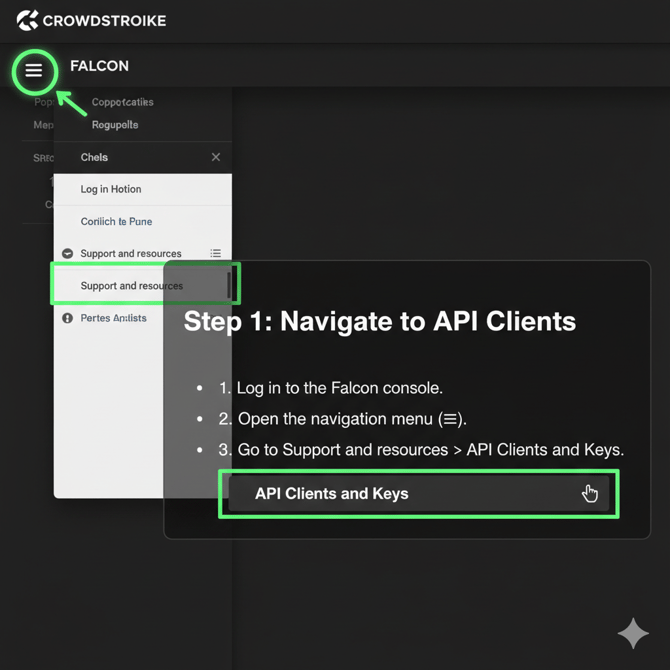
Log In and Navigate to the API Client Page
- Log in to your CrowdStrike Falcon console.
- Open the navigation menu (the "hamburger" icon ☰) in the top-left corner.
Go to Support and resources > API Clients and Keys.
Create a New API Client
-
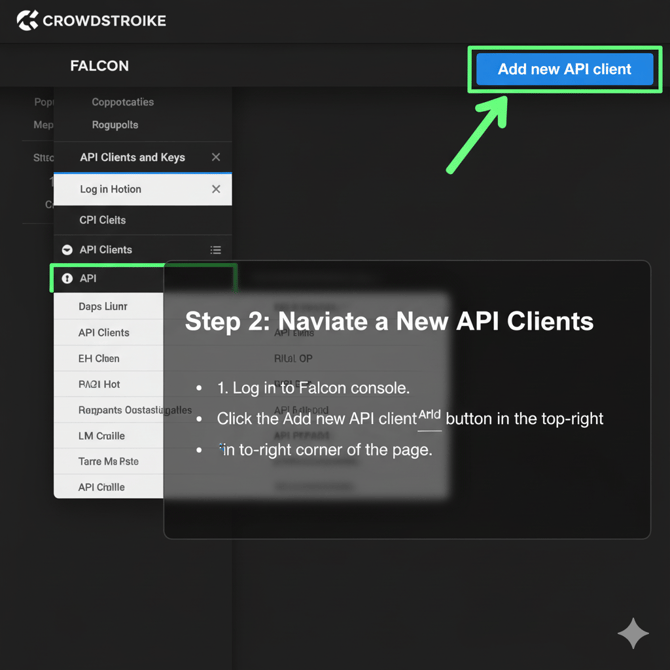
On the API Clients and Keys page, click the Add new API client button in the top-right.
Configure Client Details
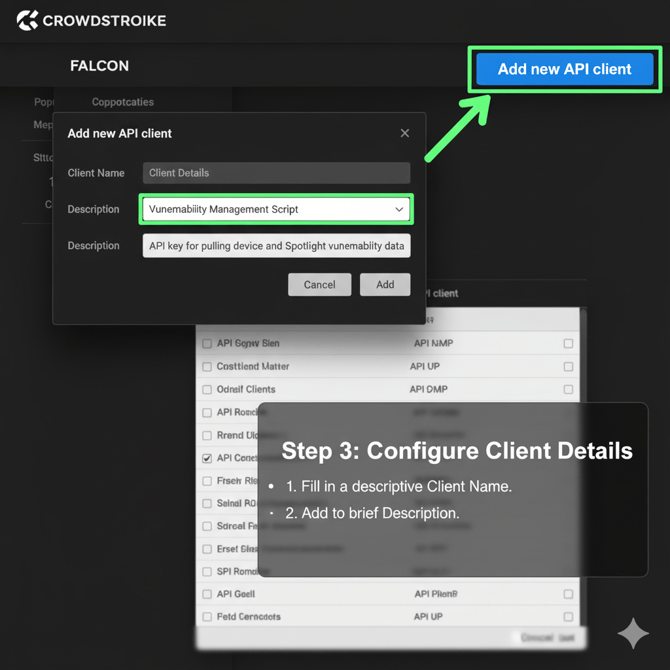
- A dialog box will appear. Fill in the following details:
- Client Name: Give your API client a descriptive name (e.g., "Vulnerability Management Script").
Assign API Scopes (Permissions)
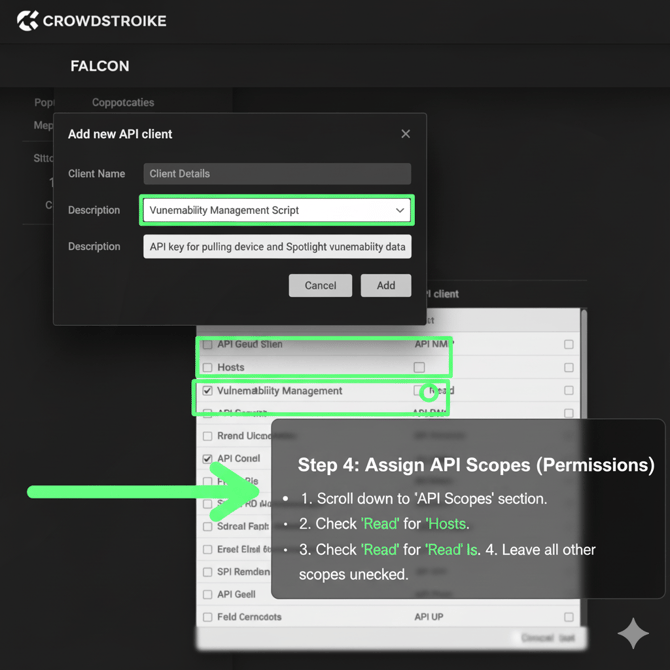
- In the API Scopes section, you need to select the permissions for your key. Based on your request, you'll need to assign Read permissions to two scopes.
- Check the box next to Hosts and select the Read permission. This covers /devices/queries/devices-scroll/v1 and /devices/entities/devices/v2.
- Check the box next to Vulnerability Management and select the Read permission. This covers /spotlight/combined/vulnerabilities/v1.
- Leave all other scopes unchecked.
- Click the Add button to create the API client.
- A confirmation window will appear displaying your API credentials.
You will be shown:
- CLIENT ID: Your public identifier.
- CLIENT SECRET: Your private key. This will only be shown once!
BASE URL: The base URL for your API requests, which depends on your cloud environment (e.g., api.crowdstrike.com).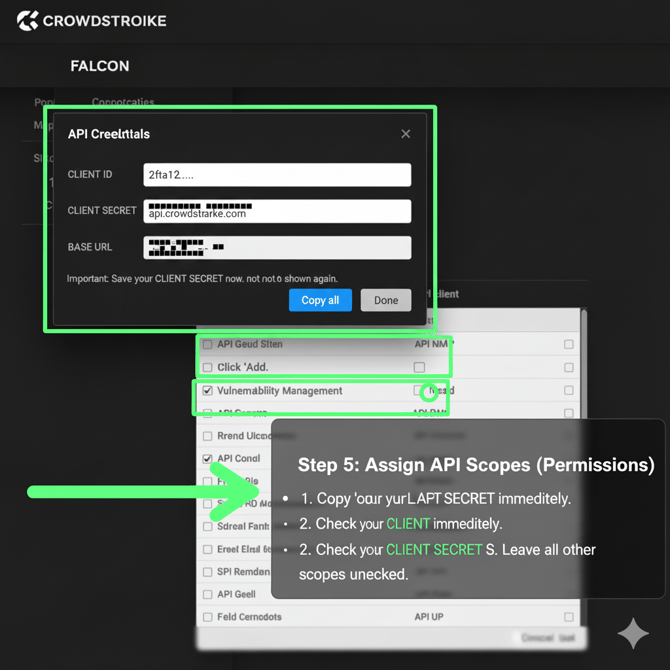
Enable the integration in the Nopsec Platform
-
Navigate to Integrations in the NopSec UI and select the option to add the Checkmarx

-
Enter Integration Access Info: When prompted enter the following information and click the "Save and Connect" button:
- Connection Name: Unique name for this integration
- Client ID: The Key ID created in the previous steps.
- Client Secret Key: The secret key generated when creating the API Key ID in previous steps.
- SAVE and CLOSE