![nopsec-full-logo-white.png]](https://support.nopsec.com/hs-fs/hubfs/Images/Logos/NopSec%20Logos/nopsec-full-logo-white.png?height=40&name=nopsec-full-logo-white.png)
Step 1: Log in to Checkmarx One
First, open your web browser and navigate to your Checkmarx One instance URL. Log in using an account that has administrative privileges to manage users and roles.
Step 2: Navigate to User Management
Once logged in, you'll need to find the user management section. Typically, this is located under an "Administration," "Settings," or similar menu. Look for an option related to "Identity & Users" or "User Management."
Step 3: Create a New User
Click on the "New User" or "Create User" button to begin the process of adding a new user account.
Step 4: Enter User Details
Fill in the required information for the new API user.
- Username: Choose a descriptive username, e.g., api.user.astviewer.
- Email: Provide an email address. This doesn't necessarily need to be a monitored inbox for an API user, but it's a required field.
- First Name & Last Name: Enter placeholder names, e.g., "API" for the first name and "User" for the last name.
- Password: Set a strong password. You might want to generate a complex one, as this will be used for API authentication. Make sure to record it securely.
After filling in the details, click "Create User."
Step 5: Assign Roles to the New User
After creating the user, you'll need to assign the appropriate roles. For AST-Viewer permissions, you typically want to assign roles that grant read-only access to scan results.
In the user's details page, navigate to the "Roles" tab or section.
Step 6: Add AST-Viewer Role (or equivalent)
Click "Add Roles" and search for roles related to "AST Viewer," "Results Viewer," or similar. The exact role name may vary based on your Checkmarx One configuration. Select the role that grants read-only access to AST scan results.
Step 7: Confirm Role Assignment
Verify that the AST Viewer role (or its equivalent) has been successfully assigned to the new API user.
Step 8: Generate API Key (Optional, but Recommended)
For API integration, it's often more secure and convenient to use API keys instead of direct username/password authentication. If your Checkmarx One instance supports it, navigate to the "API Keys" section for the user and generate a new API key.
Make sure to copy the API key immediately after generation, as it usually won't be displayed again. Store it securely.
Step 9: Enable The Prisma Cloud Integration in Nopsec
-
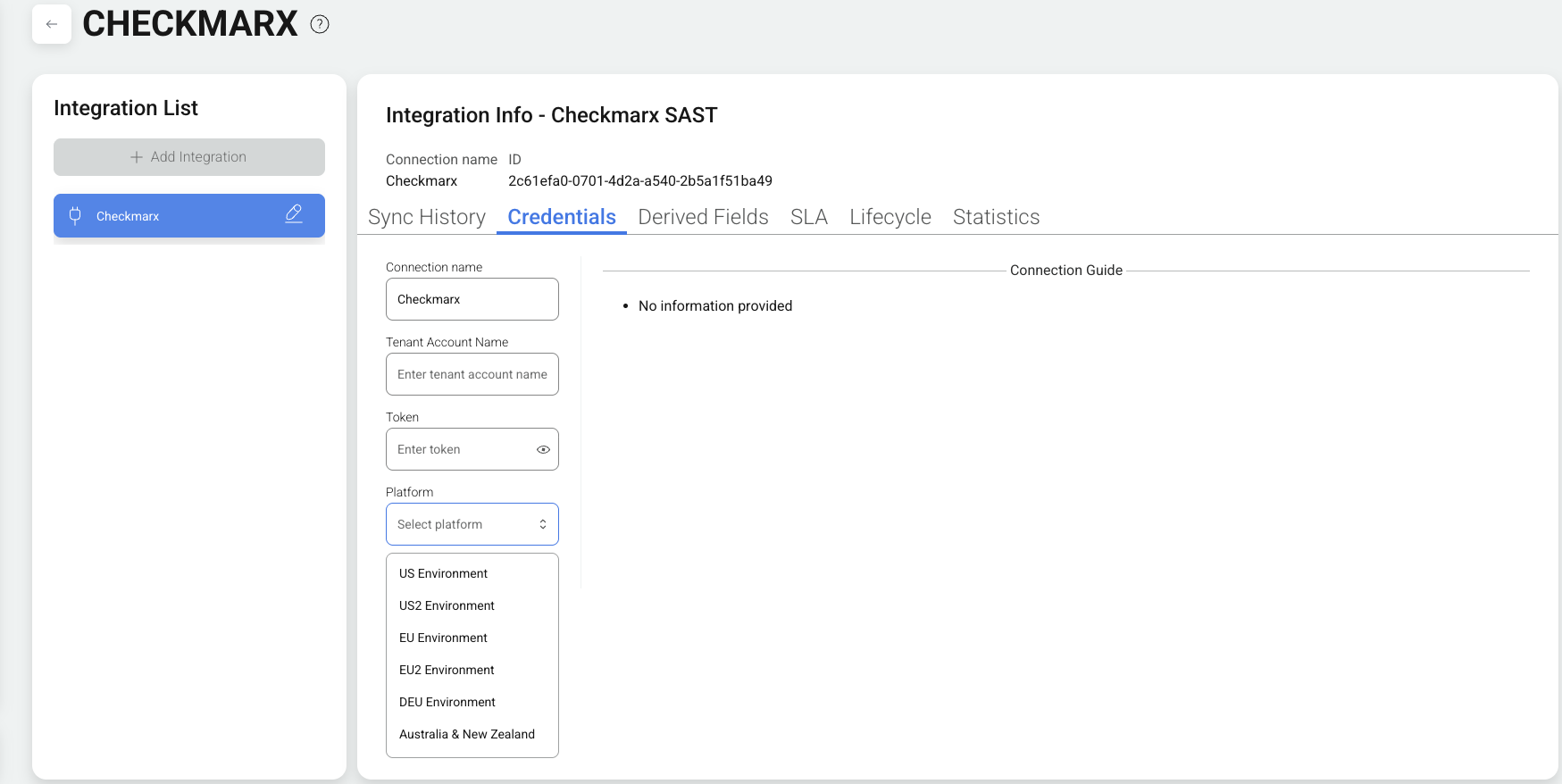
Navigate to Integrations in the NopSec UI and select the option to add the Checkmarx

-
Enter Integration Access Info: When prompted enter the following information and click the "Save and Connect" button:
- Connection Name: Unique name for this integration
- Tenant Account Name: The account name used/assigned to the API Key
- API Token: The Token created in the previous steps.
- Platform: The platorm deployment region (See Example Below)